
Introduction
Outlet users can be set up to approve orders as Head Office users do.
Assumption
This option has been activated (IndiCater will need to do this)
Your requisition approval levels have already been set. There is a separate guide on the set up process called Setting Up Requisition Levels https://indicater.atlassian.net/wiki/spaces/IUG/pages/3105751184/Setting+up+Requisition+Approval+Levelsp
You have the permission set to access User Access
Where to find this
User Access > Outlet Access
Step by Step Guide
You now need to apply the requisition approval level to the relevant outlet users.
In User Access, Outlet Access, you will see a list of outlet users.
Click on a user's name. You will see a Requisition Level field which contains 1 - 6 levels. Select the appropriate level, scroll down to the bottom of the page and click on the Update User button.
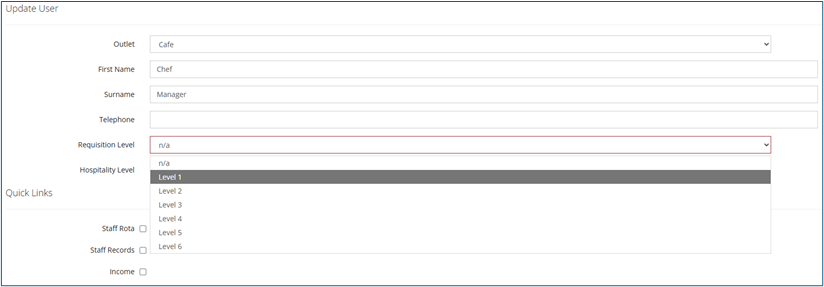
This user will be able to approve orders to the value set for the level applied.
You will also need go into the Permissions for that user, click on the Update button in the Permissions column (highlighted in yellow below).
Scroll down to the StORM area and tick the Order Approvals box, then click on the Submit button to save the change.
The orders placed in that outlet will sit in Orders, Current until approved. On approval the order will be sent to the supplier. The user with the approval setting will be notified by email that an order is awaiting approval.